Once the order has been created in step one, and before you begin the process of picking, packing, and shipping orders through the Distribution Center, the second step is to Release to DC, which changes the status of the order from Created to Ready to Download. Once the order is released, the Distribution Center will receive notifications through email and/or via its status on the Dashboard.
Navigation: Orders > Release to DC
The Release Orders to Distribution Center page will list the following:
Order ID
Customer Name
Order Terms
Value
Start / Cancel Date
These headings can be used to sort the order information by selecting the green arrow beside each heading. The information displayed in blue text on this page allows you to select and view additional details.
- You will also see a heading for “Pending Comment” When the three blue dots link is clicked on; a pop up text box will appear allowing you to make comments pertaining to that order. These comments once saved will appear on the Page to allow you to better manage your Releases.
- Once the orders for release have been chosen, it will have to be decided if the order is Clear to Ship or Pack and Hold. Generally orders with Credit Card or COD Collections will be released to P&H so that once they are updated they will be held.
- Once the proper steps have been taken for payment. Clear to Ship orders will be Picked, Packed and Shipped.
- Once the orders have been checked off at the far right of the page, scroll down to the bottom of the page and hit the “Release” button
- You should come to a secondary screen showing you the Fill %. Anything in blue print, you can click on to see more information ei. Click on the % and you will see what SKUs can be filled.
- Click Confirm Release
- You should see a successful check mark showing "Successfully released the following orders:"
- This will email out to the recipients set up under the Advanced > Administration > Email Notification – letting them know there are orders ready for picking.
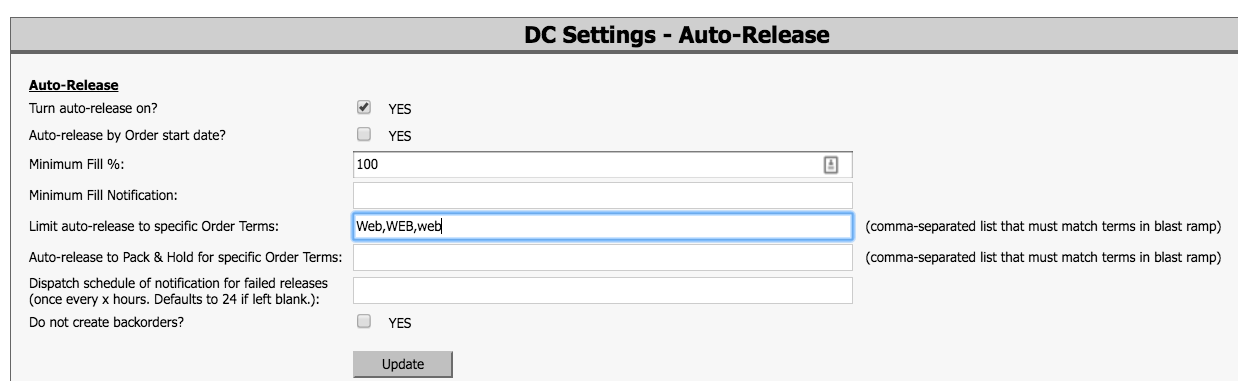
💡 Tip: Orders may also be set to auto release under Advanced > Administration > Auto Release, so that they will Auto Release to the floor. Commonly used for Ecom order. This Auto release happens once an hour. The release may be managed by limiting release by Terms and fill percentage.